
MCP Server
ccusage includes a built-in Model Context Protocol (MCP) server that exposes usage data through standardized tools. This allows integration with other applications that support MCP.
Starting the MCP Server
stdio transport (default)
ccusage mcp
# or explicitly (--type stdio is optional):
ccusage mcp --type stdio
The stdio transport is ideal for local integration where the client directly spawns the process.
HTTP Stream Transport
ccusage mcp --type http --port 8080The HTTP stream transport is best for remote access when you need to call the server from another machine or network location.
Cost Calculation Mode
You can control how costs are calculated:
# Use pre-calculated costs when available, calculate from tokens otherwise (default)
ccusage mcp --mode auto

# Always calculate costs from tokens using model pricing
ccusage mcp --mode calculate

# Always use pre-calculated costUSD values only
ccusage mcp --mode display
Available MCP Tools
The MCP server provides four main tools for analyzing Claude Code usage:
daily
Returns daily usage reports with aggregated token usage and costs by date.
Parameters:
since(optional): Filter from date (YYYYMMDD format)until(optional): Filter until date (YYYYMMDD format)mode(optional): Cost calculation mode (auto,calculate, ordisplay)
monthly
Returns monthly usage reports with aggregated token usage and costs by month.
Parameters:
since(optional): Filter from date (YYYYMMDD format)until(optional): Filter until date (YYYYMMDD format)mode(optional): Cost calculation mode (auto,calculate, ordisplay)
session
Returns session-based usage reports grouped by conversation sessions.
Parameters:
since(optional): Filter from date (YYYYMMDD format)until(optional): Filter until date (YYYYMMDD format)mode(optional): Cost calculation mode (auto,calculate, ordisplay)
blocks
Returns 5-hour billing blocks usage reports showing usage within Claude's billing windows.
Parameters:
since(optional): Filter from date (YYYYMMDD format)until(optional): Filter until date (YYYYMMDD format)mode(optional): Cost calculation mode (auto,calculate, ordisplay)
Testing the MCP Server
Interactive Testing with MCP Inspector
You can test the MCP server using the MCP Inspector for interactive debugging:
# Test with web UI (if you have the dev environment set up)
bun run mcp

# Test with the official MCP Inspector
bunx @modelcontextprotocol/inspector bunx ccusage mcp
The MCP Inspector provides a web-based interface to:
- Test individual MCP tools (daily, monthly, session, blocks)
- Inspect tool schemas and parameters
- Debug server responses
- Export server configurations
Manual Testing
You can also manually test the server by running it and sending JSON-RPC messages:
# Start the server
ccusage mcp

# The server will wait for JSON-RPC messages on stdin
# Example: List available tools
{"jsonrpc": "2.0", "id": 1, "method": "tools/list"}
Integration Examples
With Claude Desktop
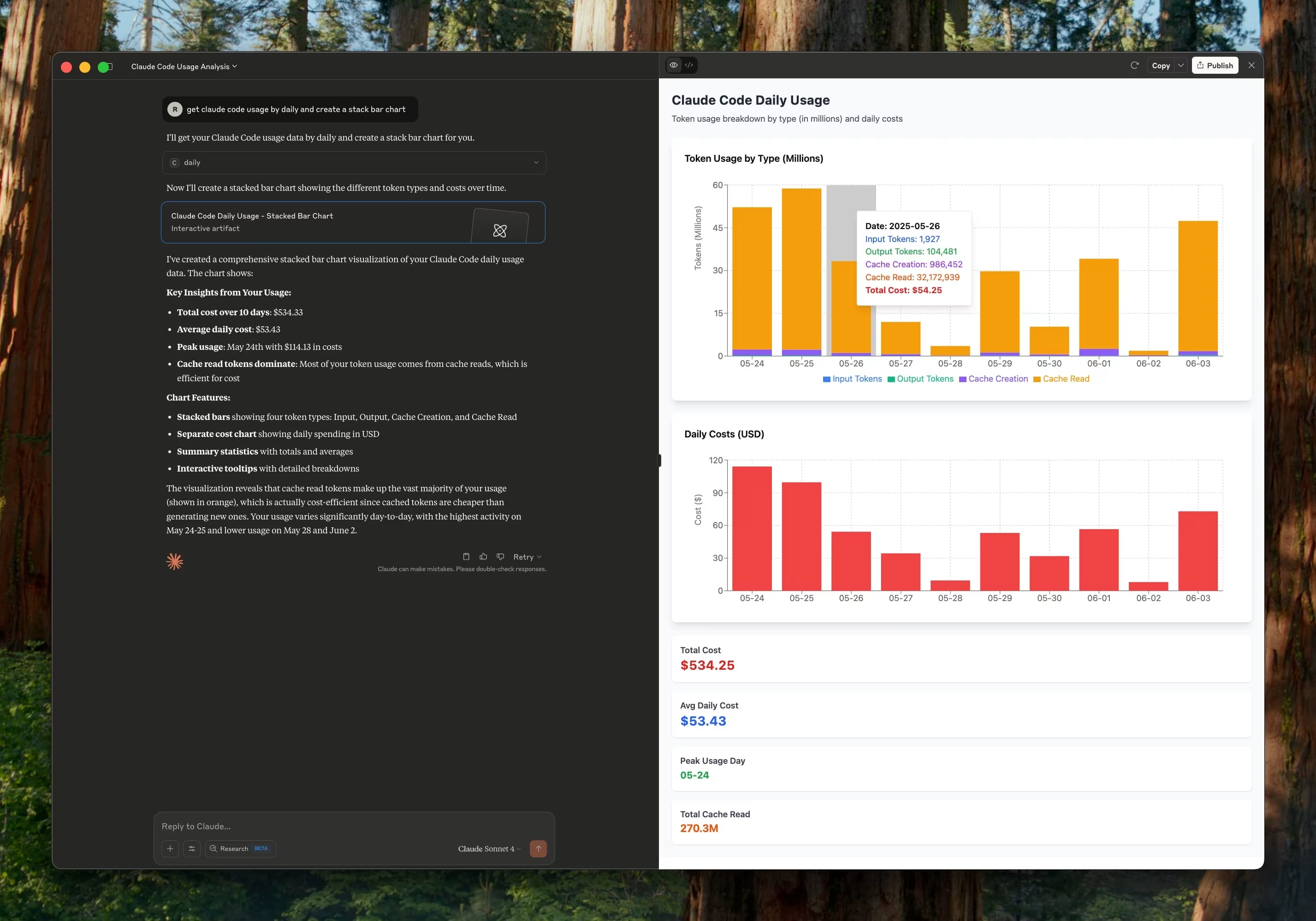
To use ccusage MCP with Claude Desktop, add this to your Claude Desktop configuration file:
macOS: ~/Library/Application Support/Claude/claude_desktop_config.jsonWindows: %APPDATA%\Claude\claude_desktop_config.json
Using npx (Recommended)
{
	"mcpServers": {
		"ccusage": {
			"command": "npx",
			"args": ["ccusage@latest", "mcp"],
			"env": {}
		}
	}
}
Using Global Installation
If you have ccusage installed globally:
{
	"mcpServers": {
		"ccusage": {
			"command": "ccusage",
			"args": ["mcp"],
			"env": {}
		}
	}
}
Custom Configuration
You can specify custom Claude data directories and cost calculation modes:
{
	"mcpServers": {
		"ccusage": {
			"command": "npx",
			"args": ["ccusage@latest", "mcp", "--mode", "calculate"],
			"env": {
				"CLAUDE_CONFIG_DIR": "/path/to/your/claude/data"
			}
		}
	}
}
After adding this configuration, restart Claude Desktop. You'll then be able to use the ccusage tools within Claude to analyze your usage data.
Available Commands in Claude Desktop
Once configured, you can ask Claude to:
- "Show me my Claude Code usage for today"
- "Generate a monthly usage report"
- "Which sessions used the most tokens?"
- "Show me my current billing block usage"
- "Analyze my 5-hour block patterns"
Troubleshooting Claude Desktop Integration
Configuration Not Working:
- Verify the config file is in the correct location for your OS
- Check JSON syntax with a validator
- Restart Claude Desktop completely
- Ensure ccusage is installed and accessible
Common Issues:
- "Command not found": Install ccusage globally or use the npx configuration
- "No usage data found": Verify your Claude Code data directory exists
- Performance issues: Consider using
--mode displayor--offlineflag
With Other MCP Clients
Any application that supports the Model Context Protocol can integrate with ccusage's MCP server. The server follows the MCP specification for tool discovery and execution.
Environment Variables
The MCP server respects the same environment variables as the CLI:
CLAUDE_CONFIG_DIR: Specify custom Claude data directory pathsbashexport CLAUDE_CONFIG_DIR="/path/to/claude" ccusage mcp
Error Handling
The MCP server handles errors gracefully:
- Invalid date formats in parameters return descriptive error messages
- Missing Claude data directories are handled with appropriate warnings
- Malformed JSONL files are skipped during data loading
- Network errors (when fetching pricing data) fall back to cached data when using
automode